


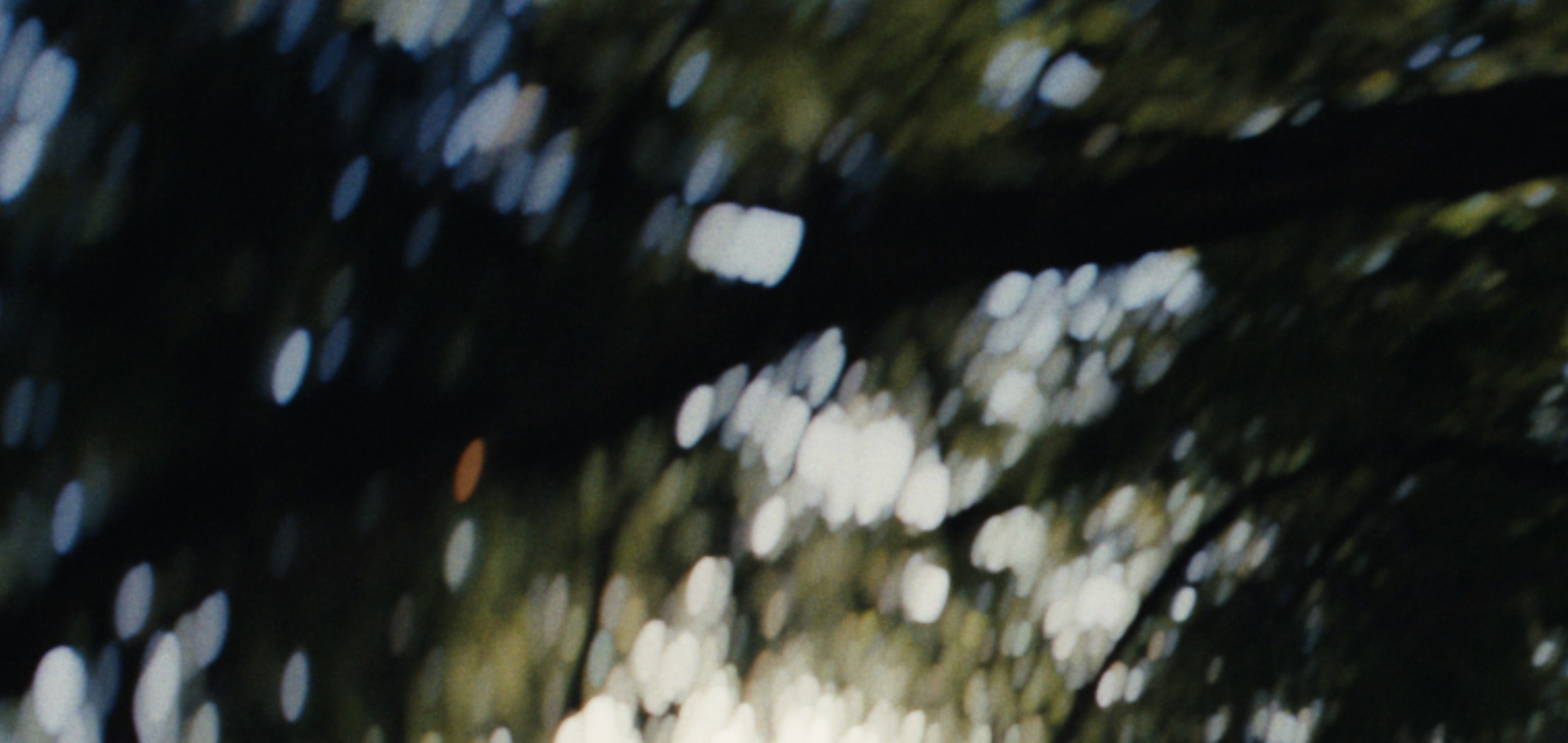
Swirly bokeh is one of the most asked about looks LensNode provides. It’s actually quite intuitive once you understand how the plugin works. Here’s the quickest, most straightforward way to get it going.
An Important Note
It’s important to note that if your footage has low contrast, or is already blurry and out of focus, or is smeary, or just has no detail in general, the Bokeh Blur will be harder to see (sometimes impossible to see). LensNode’s Bokeh Blur works the same way a real lens does to some extent, where if you point a really swirly Petzval at a white wall, you won’t see any swirly bokeh. Lens effects like this need contrast and detail to start with, which can then be blurred to get a realistic final result.
Add LensNode and set your color space
Drag LensNode onto your clip and set the Input Color Space to match your footage. You’ll also want to apply a conversion to your final color space after LensNode, whether that is Filmbox, a LUT, a DRT, or similar.
Isolate the bokeh blur
Open Individual Controls and turn everything off except Bokeh Blur. This makes it really obvious what you’re doing while you set up the swirl. You can add the other characteristics back in to taste afterwards.
Overdrive a blurry lens
Set Overdrive to maximum, or push Bokeh Blur to 10 (Extend Ranges if you need to), or do both. This will allow you to see the bokeh blur really clearly in the corners. Picking a lens that has a lot of blur to start with helps, too. Alternatively, you can use Bokeh Boost or Depth Gain found in Creative Settings to add blur to the whole image in combination with the settings mentioned above. Once you can see the blur, then you can swirl it.
Turn up Bokeh Swirl
Once you can see obvious bokeh in your image, scroll down to the bottom, find Bokeh Swirl, and turn it up. There’s your swirly bokeh effect.
Dial the rest back in to taste
Now bring the other characteristics back. Add your Coma back in, your Chromatic Aberration, and anything else you want. Pull Overdrive, Bokeh Blur and Bokeh Boost or Depth Gain back to a sensible level if needed.
Why Overdrive matters
If you just grab the Bokeh Swirl slider and it doesn’t seem to do anything, now you know why. Bokeh Swirl only squishes and stretches the Bokeh Blur being rendered by LensNode. Just moving this one slider will not magically create the blur, you need to add blur first, then swirl it afterwards.
 Made in California