


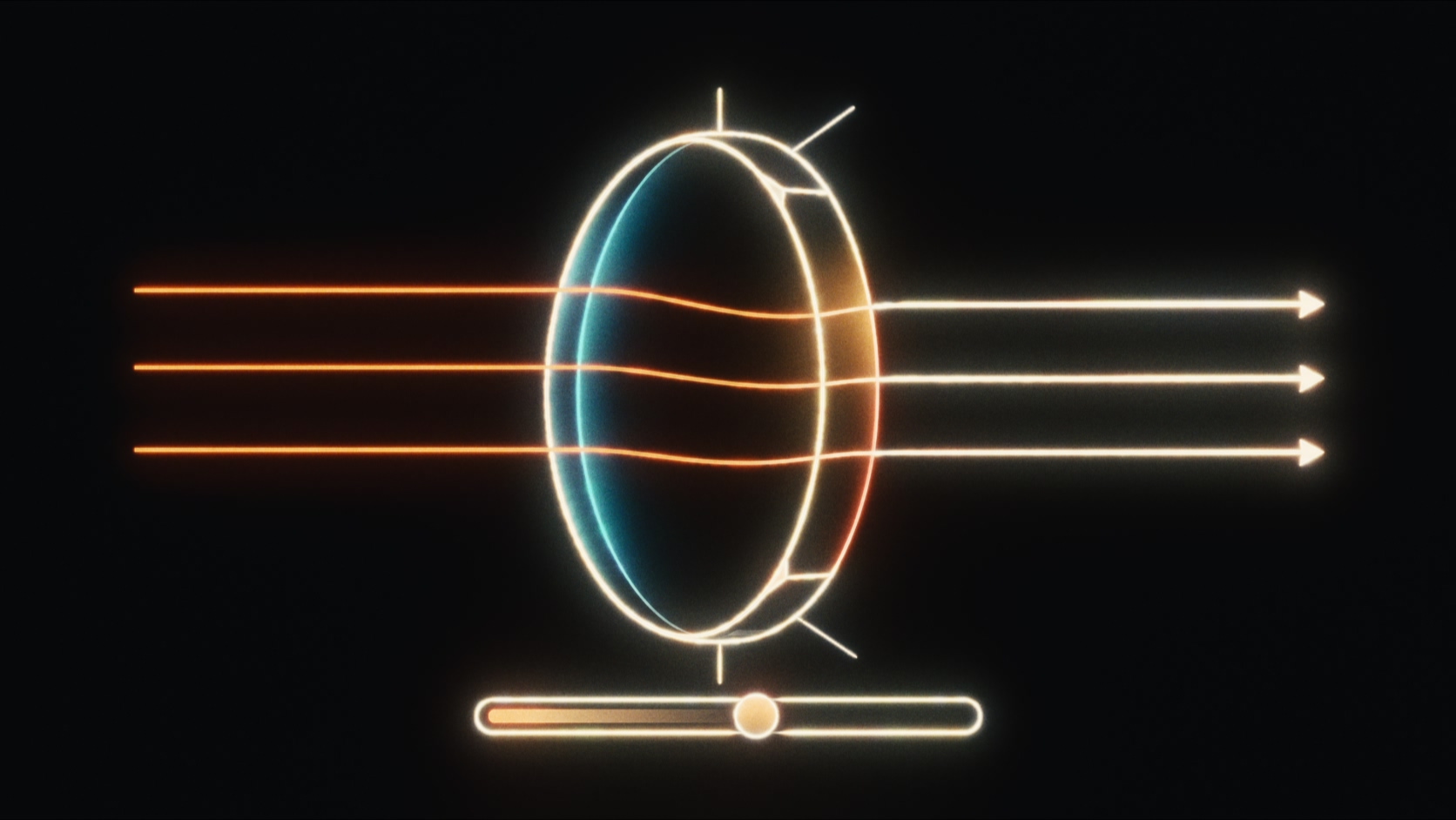
Open Technical Settings to control image sampling around the frame. The top-level Quality and Cache controls set render quality and optical caching.
Interactive Quality
Sets quality while dragging the gizmo or when the host requests a draft render. Choose Interactive, Low, Medium, High, or Final. These renders always trace directly with the optical cache off, even when the top-level Final Quality switch is enabled.
Use a lower setting for faster interaction. Normal renders use the selected Quality.
Image Edges
Refraction and image-based reflections can sample outside the source image. Choose what Mirage uses in that area:
- Transparent leaves the area outside the image transparent.
- Clamp / stretch edges extends the outer pixels.
- Repeat tiles the source image.
- Mirror reflects it at the boundaries. This is the default.
- Wrap Source Spherical uses the source as a spherical surround.
- 2nd Input Spherical uses the optional extra input, in some hosts labelled World Space input.
- EXR/HDR Spherical uses an imported environment file.
The World Space input
Connect a latitude–longitude panorama to the optional World Space input, then select 2nd Input Spherical. Mirage uses it outside the front image. If the input is unavailable, the surround is transparent.
EXR and HDR world textures
Use Imports › World Texture › Import EXR/HDR to load an environment image, then select EXR/HDR Spherical in Image Edges. See Imports › World Texture for file handling.
Use a latitude–longitude panorama. The center faces forward along +Z, and the top points up along +Y. EXR and HDR can store values above display white, but the image must contain those values to provide bright highlights.
World Texture Blur
Available with Wrap Source Spherical. Blurs the surround made from the source image. The blur is measured at quarter resolution; 0 keeps the surround sharp.
World Blur Amount
Available with 2nd Input Spherical or EXR/HDR Spherical. Blurs the surround at quarter resolution without blurring the front image. 0 leaves it sharp. Increase it to make detail in the surround less distinct.
Feather
Available with Mirror or a spherical surround. Blurs a band on both sides of the image boundary before ray tracing. The radius is a percentage of the shorter image dimension, with the same pixel radius in both axes. 0 disables feathering.
Sample Jitter
Varies cached sample placement each frame without rebuilding the stored rays. The amount is a percentage of the aperture radius. 0 keeps placement fixed. Small offsets may not produce a visible change because placement uses whole pixels.
This control is active with Cache on and Vary Noise Every Frame enabled.
Vary Noise Every Frame
Uses a repeatable sampling pattern based on the frame number. Disable it to keep the same pattern on every frame.
Enable Retrace
In direct tracing, gives selected pixels another pass when their neighbors used more samples. It raises the minimum sample count for those pixels without raising the maximum. It is unavailable while using the optical cache.
Warn on Version Mismatch
Enable this to show a warning when a project was created with a different Mirage version. The warning appears once.
Reference Gamut Compression
Enables OCIO reference gamut compression. Use it with caution: this option has known issues that can cause glitches in downstream processing. Leave it off unless your workflow requires it, and check the complete processing chain when enabling it.
Final Quality
These settings apply when Final is selected in the top-level Quality menu. Adjust them if Final quality is not clean enough.
Final Noise Threshold
Sets the noise threshold used to stop adaptive sampling. Lower values request a cleaner result. 0 uses all available steps. The default is 0.0005.
Final Min Steps
Sets the minimum number of samples per pixel. Increase this first, as noisy areas are often caused by sampling ending too early. The default is 64.
Final Max Steps
Sets the maximum number of samples per pixel. Increase it if noise remains after raising Min Steps: it allows sampling to continue longer to reach the noise threshold, at the cost of render time. The default is 400.
OBJ Shading
Available for imported OBJ geometry and supported generated shapes. These controls change surface shading rather than the mesh outline.
Honor OBJ Shading
Uses the OBJ’s stored normals and smoothing groups. Disable it to use Smooth Shading Angle instead.
Smooth Shading Angle
Available when Honor OBJ Shading is off. Sets the angle limit in degrees for smoothing between adjacent faces. 0 keeps faces flat. Increase it to smooth across larger differences in face angle.
 Made in California