


Open Imports › Animations to import and process a motion capture.
Import iOS 6DoF CSV…
Select an iOS 6DoF motion capture. Use the controls below to process it before saving.
Preview
Test the processed capture before saving it. Preview data stays in memory only until the instance closes.
Source File
Shows the imported CSV source. This field is read-only.
Transform
Position Offset
Offsets a point on the moving capture in centimeters. Use it to change the motion pivot while keeping the first pose at zero.
Rotation Offset
Rotates the motion axes in degrees around X, Y, and Z. The first pose remains at zero.
Up Axis
Choose X, Y, or Z as the capture’s up axis. Mirage rotates that axis onto Y. Y preserves the native iOS capture axes.
Flip Horizontal
Mirrors the capture horizontally. Use it when the motion should travel in the opposite horizontal direction.
Master Gain
Scales the imported animation’s position and rotation. 1 keeps the normal strength; 0 removes the motion.
Rotation Gain
Scales rotation separately from position. Use it after Master Gain to adjust how much the glass turns.
Temporal
Trim Start
Sets the first capture frame to keep. Frame numbers start at 0.
Trim End
Sets the last capture frame to keep. The selected end frame is included.
Default End Mode
Choose Loop or Loop-ease as the saved animation’s default playback mode. You can change the mode later in Movement › End of Clip.
Loop Ease %
Available with Loop-ease. Sets the percentage of the clip used to blend back to the first pose. 20 uses the final 20%. This control uses a 0–100 percentage; Movement’s Ease % uses a 0–1 fraction.
Low-pass Width (frames)
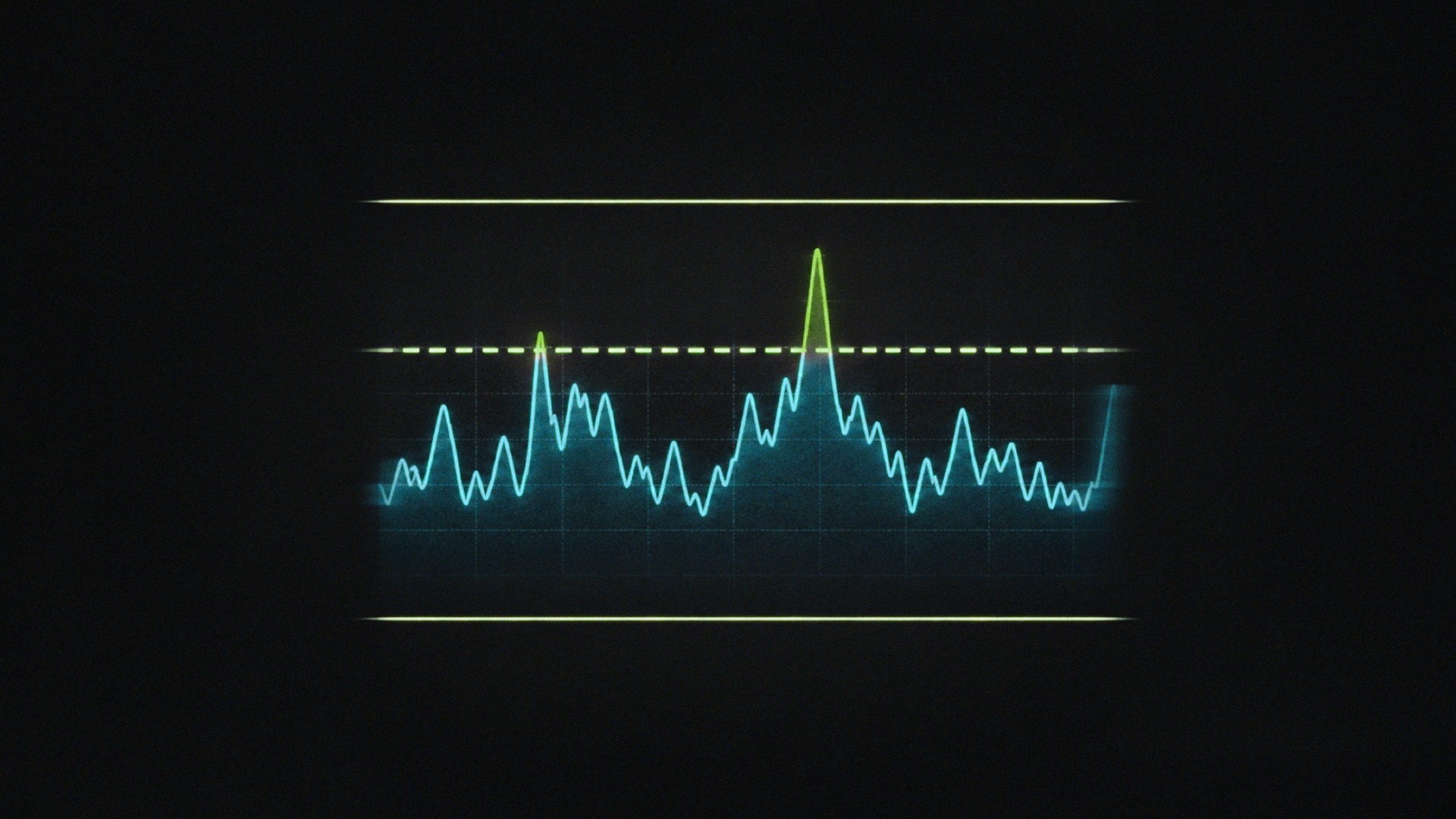
Smooths the capture with a Gaussian filter. The value is the filter’s standard deviation in frames. 0 disables smoothing. Increase it to reduce fast movement or small shakes.
High-pass Width (frames)
Removes a smoothed baseline from the motion. The value sets the Gaussian baseline width in frames. 0 preserves slow motion. Use it to remove slow drift while retaining faster changes.
Name
Enter a name for the processed animation so you can find it in the animation library.
Save
Saves the processed capture in Mirage’s animation library. Save motion you want to reuse, then select it under Movement › Animation.
 Made in California