



Filmbox is effectively a color management system on its own. Using Filmbox inside RCM (Resolve/DaVinci Color Management) can make things needlessly complicated since both systems define the display preparation of scene-referred footage in different ways. However, Filmbox can be configured to work well in specific RCM configurations.
DaVinci Color Management
Filmbox is designed to work with the HDR DaVinci Wide Gamut Intermediate Color processing mode in RCM. (Not to be confused with the Automatic HDR preset, which uses Rec.2020 instead of DaVinci Wide Gamut.)
To configure Filmbox to work in this pipeline, set Source to DaVinci Wide Gamut Intermediate and set Display Colorspace to either RCM SDR or RCM HDR, depending on how you have configured the RCM Output color space.
RCM SDR
Intended for use with Rec.709 Gamma 2.4 or other SDR Output color space settings in RCM. Not intended for use with HDR output transform settings.
RCM HDR
Intended for use with Rec.2020 ST2084 1000 nits or other ST2084 1000 nits Output color space settings in RCM. Not intended for use with SDR output transforms.
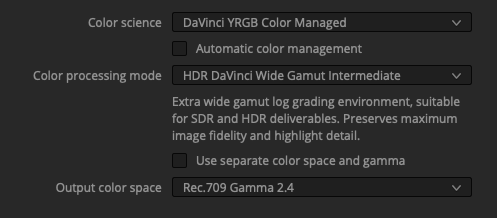
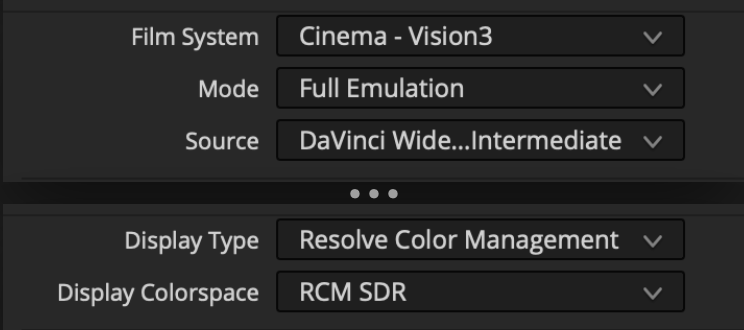
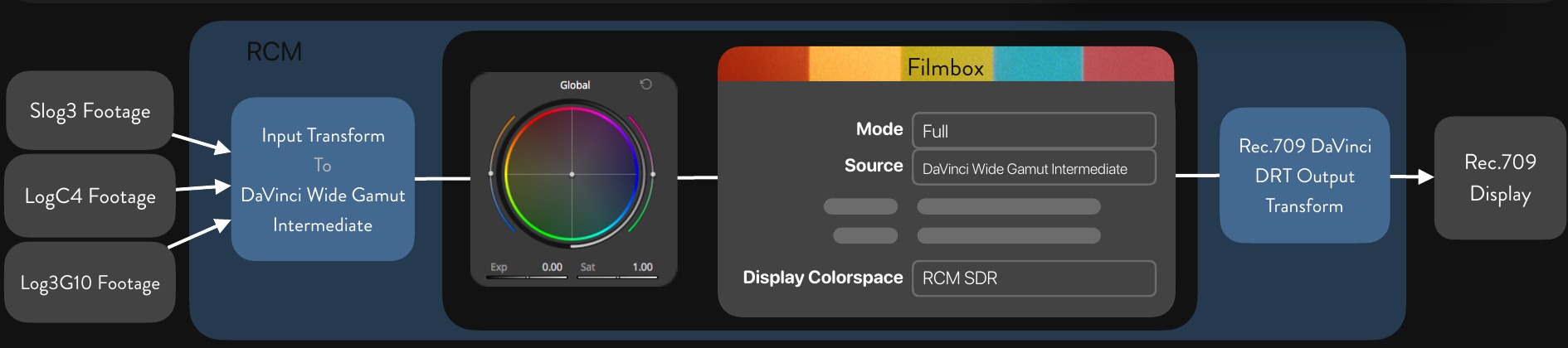
In this configuration, RCM will transform your footage to the DaVinci Wide Gamut Intermediate working space. Filmbox will take that space as input and render the emulation with an inverse output transform intended to negate the arbitrary characteristics of the RCM output colorspace transform. Once processed by the corresponding RCM output transform, the final image should match the output of a normal Filmbox pipeline.
ACES
Filmbox and ACES both define the display preparation of scene-referred footage and are partially redundant systems. If you don’t have a specific need for a full ACES pipeline, you may find it simpler to work with Filmbox on its own or to build your own color management around Filmbox. However, Filmbox can be configured to work well in a full ACES pipeline.
Input
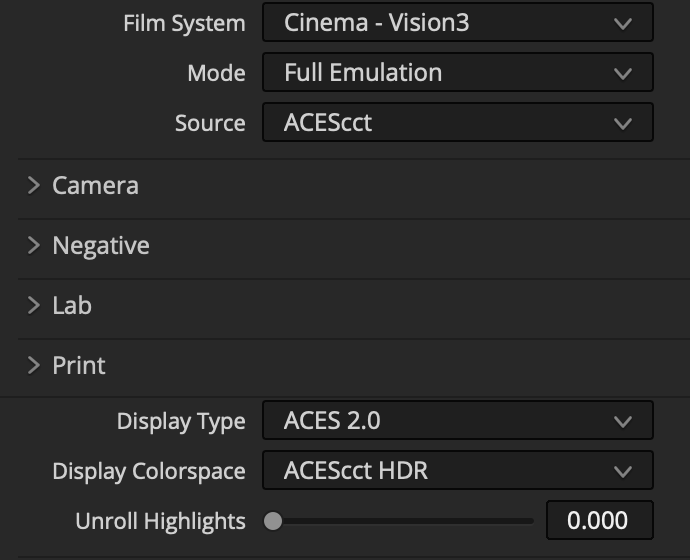
Set the Filmbox Source to match your ACES working space.
Output
Filmbox has lots of ACES outputs because not all ODTs are created equal and color management is hard, but here is how you can choose:
If you are mastering for SDR ODTs, we recommend using the ACES SDR option that matches your pipeline; this will result in a final output from ACES that exactly matches a normal Filmbox pipeline.
If you are mastering for HDR ODTs, we recommend using the ACES HDR option that matches your pipeline; this will result in an identical result to the normal Filmbox HDR pipeline, complete with access to the Filmbox HDR highlight unroll feature.
If you must use one setting for both HDR and SDR mastering, we recommend using ACES 2.0 and selecting the ACES SDR option in Filmbox. This will result in about 750 nits peak white with HDR ODTs, and it will be up to you to adjust the character of the HDR representation to taste.
Gamut Compress
If you are using ACES reference gamut compression, you may want to disable Filmbox’s internal Gamut Compression to avoid unnecessary compression.
 Made in California