



Install and activate Scatter
- Sign in to your Video Village Account and find your Scatter license page.
- Download the Video Village Plugins app.
-
On the license page, select
Activate on this deviceto launch the Video Village Plugins app and install your license automatically. - In the Video Village Plugins app, select
Final Cut, then selectInstall. (Final Cut Pro must not be running during installation.)
Color management
If you will be working in SDR, leave the Final Cut library set to Standard Gamut SDR.
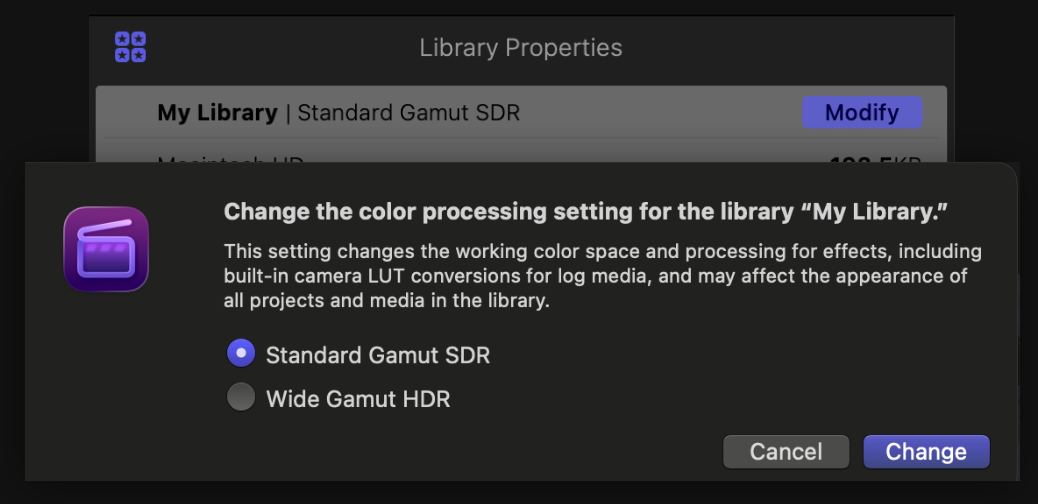
Disable Color Conform on all media by selecting all clips and disabling Color Conform in the Media Properties pane. This prevents Final Cut from applying a look to your footage.
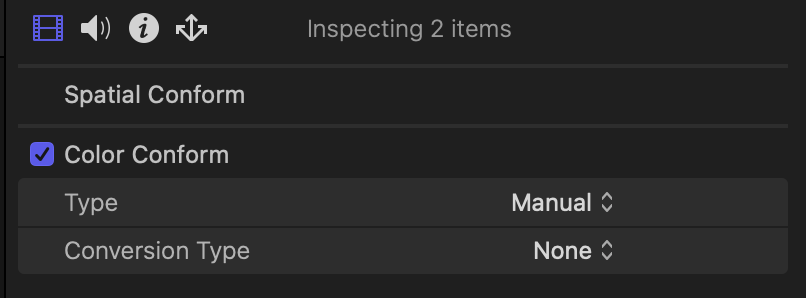
If you are working with clips from different cameras, you may want to convert them to one common working space using the Video Village Camera Conversion LUTs installed with Scatter.
Add Scatter to an adjustment clip
We recommend applying Scatter to an adjustment clip above your footage.
- Choose
Edit → Add Adjustment Clipand extend the clip to cover the shots you want to affect. - Choose
Window → Show in Workspace → Effects(or pressCommand-5) to open the Effects browser. - Select Video Village under
VIDEOand find Scatter. You can also typeScatterin the search field at the bottom of the browser. - Drag the Scatter effect thumbnail onto the adjustment clip in the timeline.
- Select that clip, choose
Window → Show in Workspace → Inspector(or pressCommand-4), then click theVideobutton at the top of the inspector to access the plugin controls.
Using an adjustment clip allows Final Cut Pro to render Scatter at the timeline resolution. You can also drag Scatter directly onto a footage clip for shot-specific control.
Select your camera

Set Source in Scatter to match the native log color space of your footage, or select Arri LogC4 if you are using the Video Village Camera Conversion LUTs.
Interface Tour
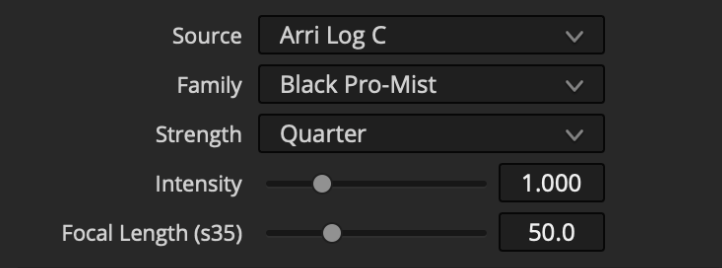
Source: Choose the colorspace of your “log” or “scene-referred” footage or working space.
Family and Strength: Select the family of profiled filters, then select the strength of the selected filter family.
Intensity: Amplify or reduce the effect of the active filter.
Focal Length: Reduce or enlarge the falloff to approximate other fields of view, expressed in millimeters of focal length on s35mm.
Highlight Color Recovery: Rebuild color information in blown-out highlight regions by considering the hue of neighboring pixels so diffusion can be calculated more naturally.
Highlight Adjustment: Amplify or reduce diffused highlights either for creative effect or to compensate for clipped highlights that should be brighter than what the sensor was able to record.
Edge: Select Vignette, Mirrored, or Repeated to determine how Scatter extrapolates beyond image bounds.
 Made in California